Published 2026-06-30 | Last updated 2026-06-30
When working with AI on web pages, graphics, or styles, color is often the biggest time sink. You describe a color, AI gives you one option, you say it's not right, AI tries again. A few rounds later, you've spent a lot of time and burned through your API credits, and you may still not have what you wanted. I eventually switched to a different approach: instead of letting AI guess repeatedly, I ask it to generate six palettes in different directions all at once, displayed side by side. I pick the one I like, fine-tune it on the spot, and copy the final result in one click. This article walks through the method, with a live demo I built.
People using AI to build web pages, graphics, or presentations who get stuck in color back-and-forth; those who want more efficient AI collaboration with fewer wasted credits; solo creators and one-person businesses who serve as their own designer.
A ready-to-use prompt (generate six palettes first, then point and fine-tune); a common pitfall to watch out for (changing the primary color means updating all child elements together); and a general thinking pattern that applies well beyond color.
The Slowest Part: Endless Guessing
The typical workflow when adjusting styles with AI goes like this: you say "give me something warmer," AI returns one option, you say it's too dark, AI tries again, too busy, you describe once more. Five or six rounds later, time is gone, credits are spent, and the final result still may not be what you had in mind.
The problem is that you are seeing one option at a time. Without a baseline for comparison, you are stuck using adjectives to navigate, and AI can only guess at the image in your head that you cannot quite put into words.
Change the Prompt: Six Palettes at Once, You Pick
I changed my approach. Instead of asking for "a color," I ask AI to generate six palettes in different directions, all applied to the same layout and displayed side by side. I simply choose the one I want.
Here is the prompt you can copy directly:
The difference is significant. With six options lined up together, you can compare at a glance and immediately know which direction appeals to you. Choosing is far easier than describing. You no longer have to translate a feeling into words. You just point at the one that looks right.
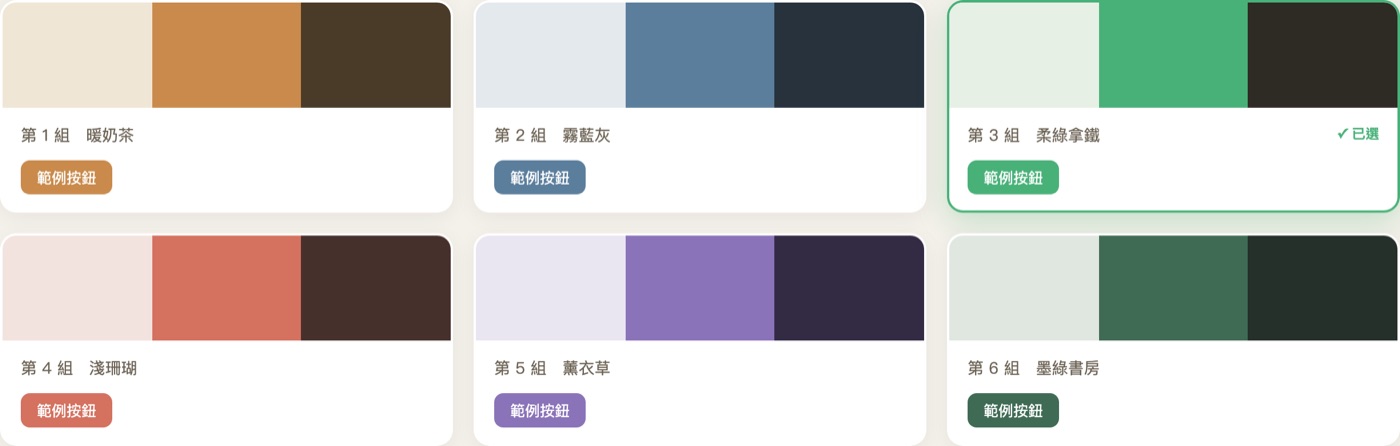
As shown above, six directions side by side: warm milk tea, misty blue-grey, soft green latte, light coral, and more. Each card applies the primary color to a real sample button, so you can see how the color actually works in context rather than just looking at a color swatch.
Try It: Drag a Slider, Watch It Change
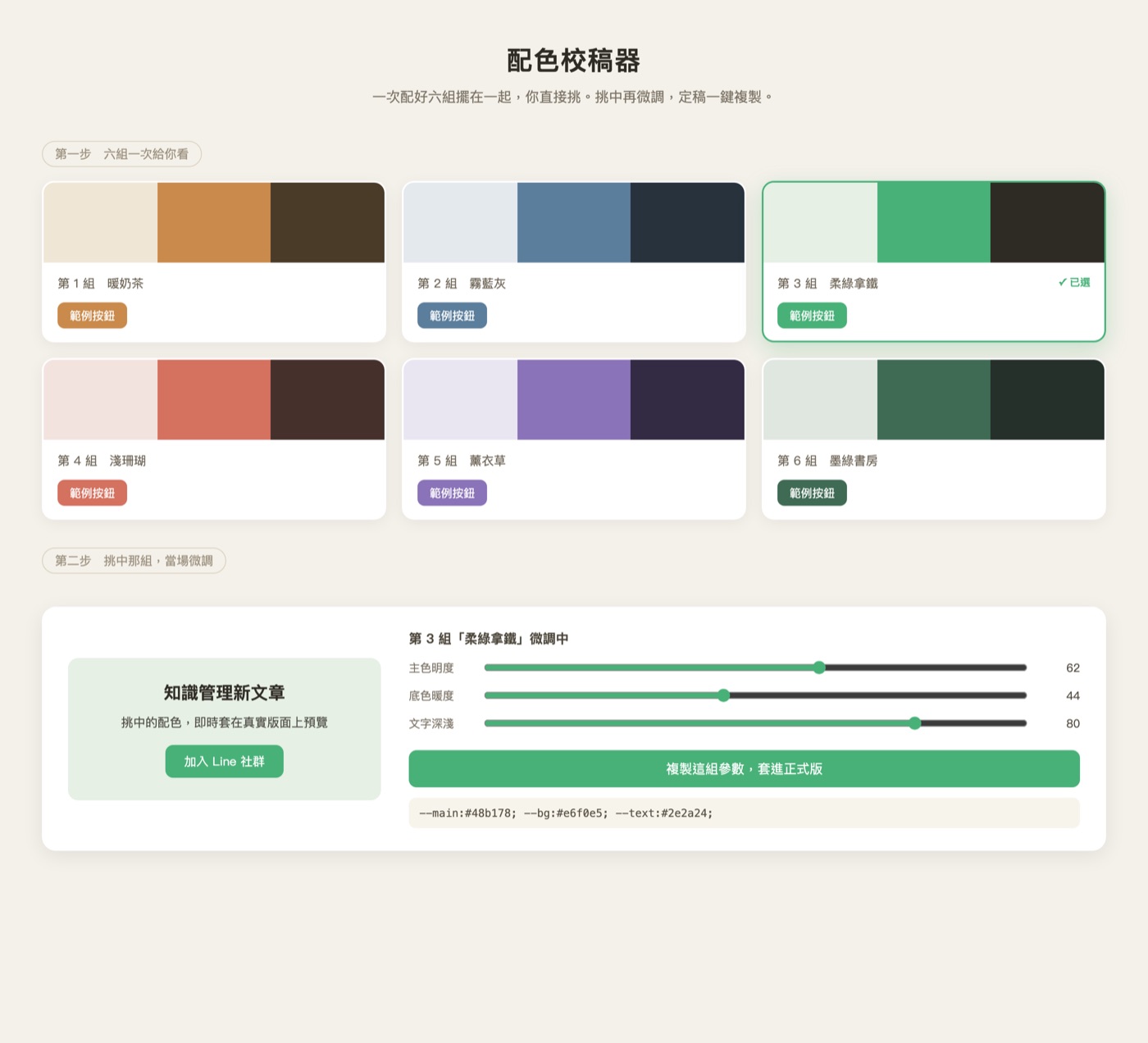
The block below is a mini web page. Click a color swatch to switch directions, or drag the three sliders to fine-tune. The preview card on the right updates in real time, and the CSS variables below update instantly so you can copy them. This is what it feels like to go from "let AI keep guessing" to "drag until it is right."
New Knowledge Management Article
The colors of this preview card update in real time as you adjust the sliders on the left.
Join the LINE CommunityWant to use this yourself? I packaged this method into an open Skills bundle called "AI Web Tuner," which includes four ready-to-open calibration tools for color, layout, typography, and glow effects. Free to download: GitHub · ai-web-tuner ↗.
Once You Have Picked One, Fine-Tune on the Spot
The palette you select will rarely be exactly right. Maybe the green needs to be a touch brighter, or the background a little warmer. You do not need to start from scratch. Just make targeted adjustments within the chosen palette.
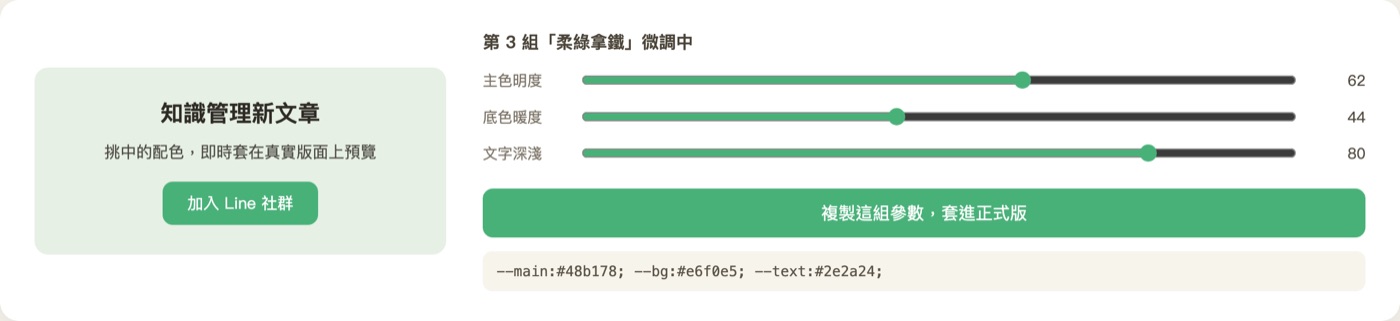
I ask AI to turn the selected palette into a few fine-tuning controls: primary color brightness, background warmth, and text darkness. A live preview on the left shows the result applied to the actual layout. Drag until it looks right. This calibration tool is a small utility I had AI build. If you do not have an interactive interface like this, you can simply ask AI to output three slightly different variations of the hex codes right in the conversation. It achieves the same result.
The key at this stage is that the direction is already decided. Fine-tuning is just a small adjustment on top of the chosen palette to get it exactly right.
Copy the Final Result in One Click
Once you are satisfied, copy the parameters and paste them directly into your production code, or hand them off to your design tool or website builder.
That is what the final output looks like, ready to paste. The full workflow is: six palettes to pick a direction, fine-tune the chosen one, copy the result. Three steps. No guessing.
A Common Pitfall Worth Knowing
There is one trap to watch out for when changing a color palette: if you update the primary color of a section, you cannot only change the background. The text, borders, card backgrounds, and buttons all need to be updated together so they remain readable on the new background.
This Principle Applies Beyond Color
The "give choices first, then fine-tune" approach works just as well outside of color. Choosing a layout, finding the right tone for copy, picking a headline title, any decision that involves trying things and iterating can benefit from asking AI to generate several parallel versions first. Pick one, then adjust. It saves the back-and-forth of guessing from scratch each time.
At its core, how efficient your AI collaboration is often comes down to whether you are giving AI descriptions or choices. Descriptions are tiring. Choices are fast. Turning the guessing game into a single selection is a small shift in habit, but the time it saves adds up considerably.
Next time you are stuck adjusting something with AI, try this: give me six options side by side first, and I will pick one to fine-tune from there.
Want to bring AI into your daily work?
I host two free online talks every month and share practical AI workflows in my LINE community. Come join the conversation.
Two free talks per month, with practical sharing on AI applications and knowledge management.